As you plan to install Windows on VMware, so I assumed that you know what VMware is and how to install VMware to your computer. So let’s start Windows installation on VMware.
1.What things do you needs
(a) Windows ISO
Copy your ISO file to your computer (you can also use a memory stick or external hard drive); however, I recommend saving your ISO file on your computer’s desktop, as this will be very fast for the installation process.
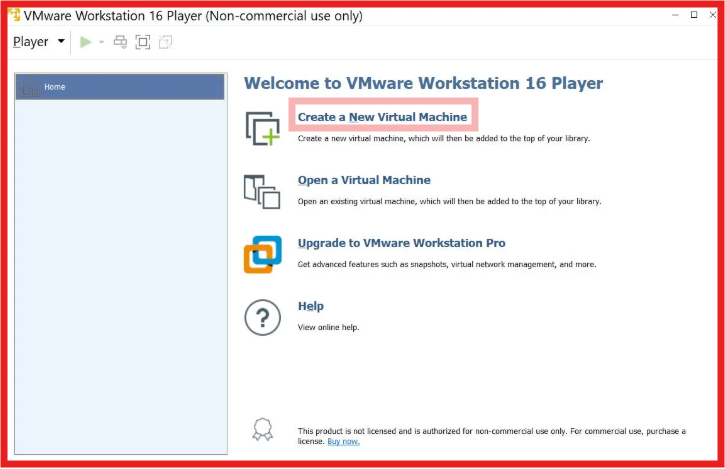
2. Run your VMware and click on Create a New Virtual Machine
3. Tick on Installer disc image file (iso) and click Browse and navigate your ISO file location
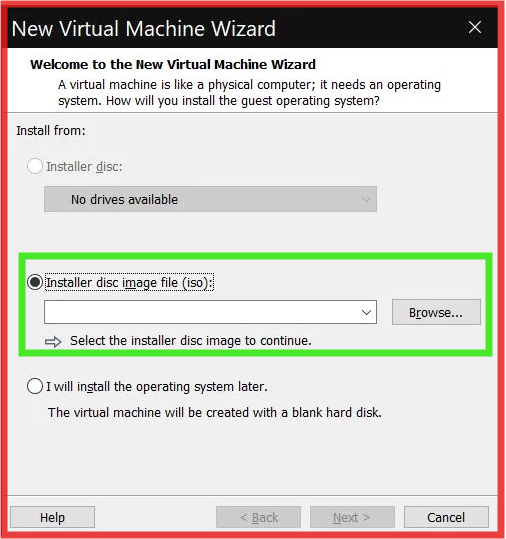
4. After selecting the ISO , you will see as photo below. Then click Next
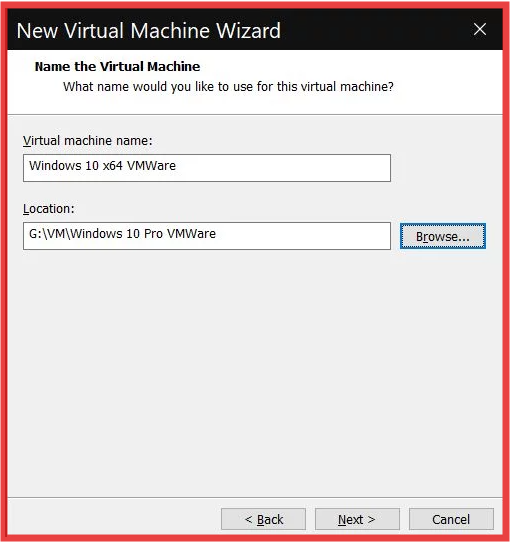
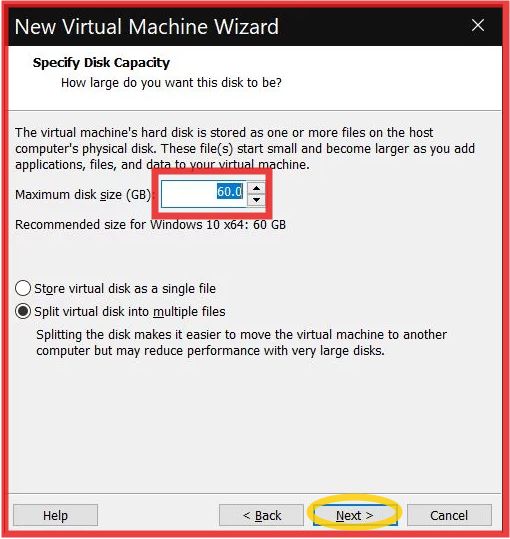
5. You can also adjust the Disk Size. Then Click Next
6. You can also adjust and customize hardware for VMware.
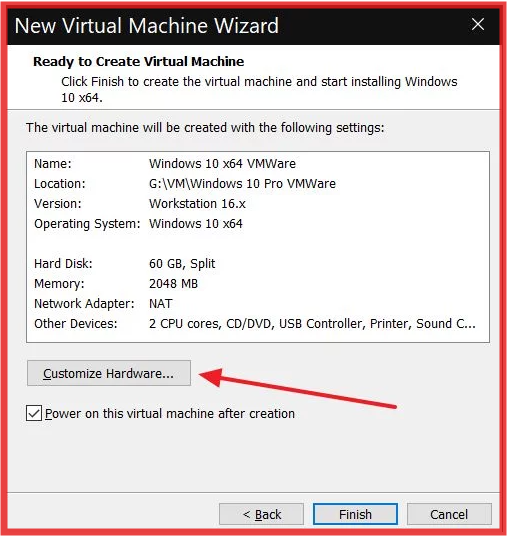
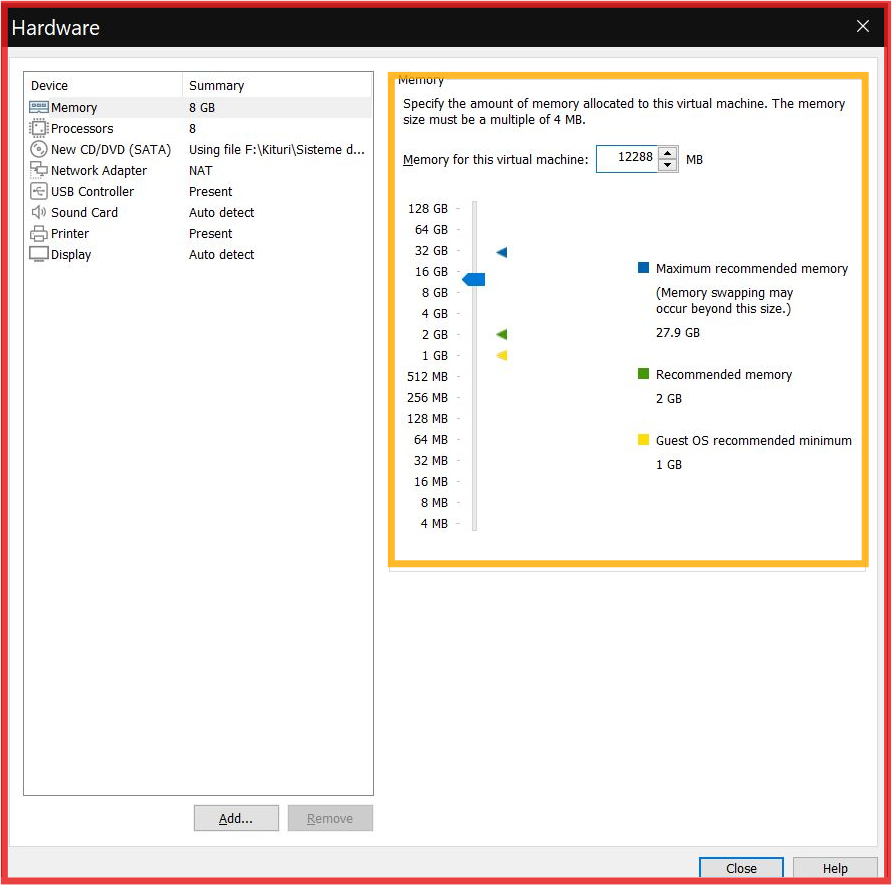
7. You can adjust your RAM for Vmware
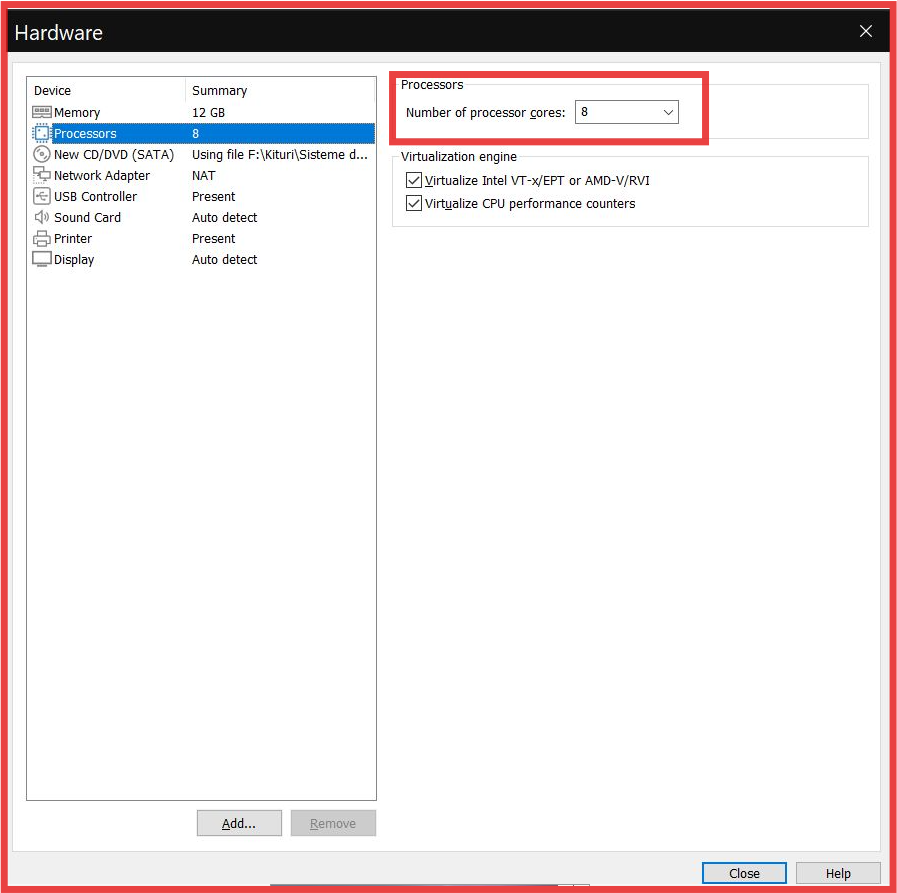
8. You can also customize for CPU.
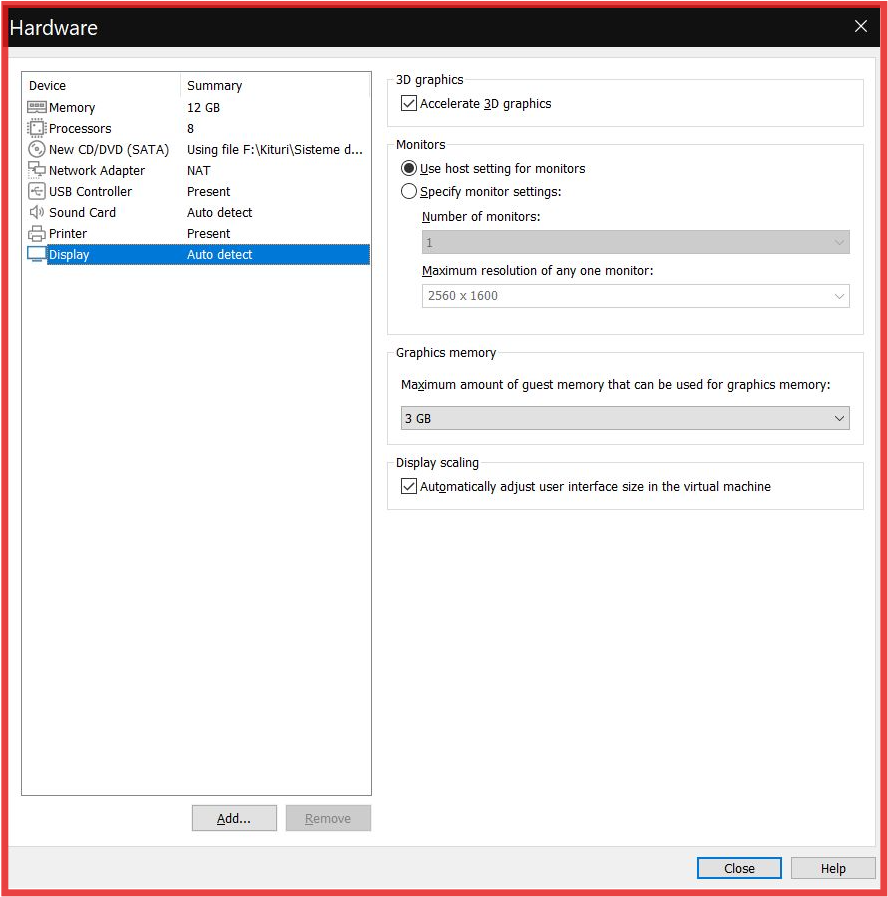
9. If you wish, you can also customize for Display
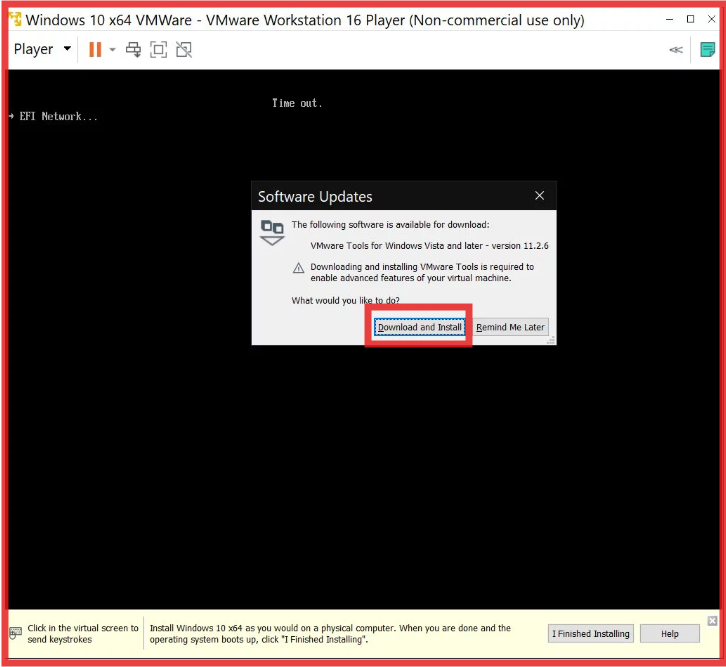
10. Sometime, VMware needs to download VMware tools, If prompt I recommed to download.
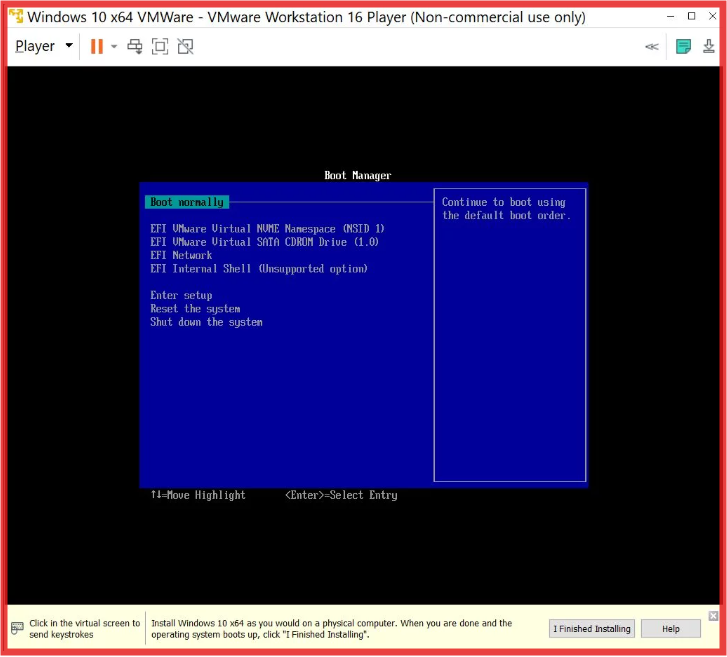
11. In some computers, it needs to change the boot manager. It is asked to change, please select SATA CD room drive.
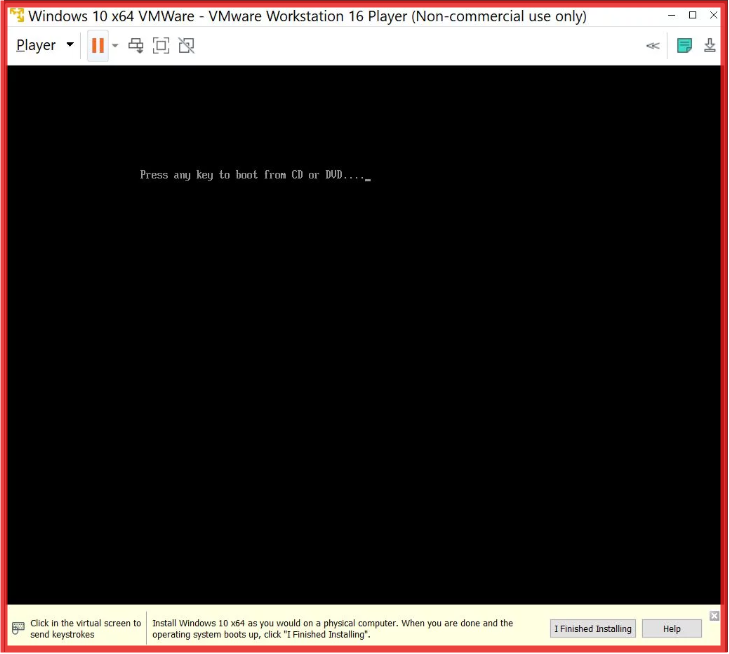
12. The below will appear like a usual Windows installation, just press any key
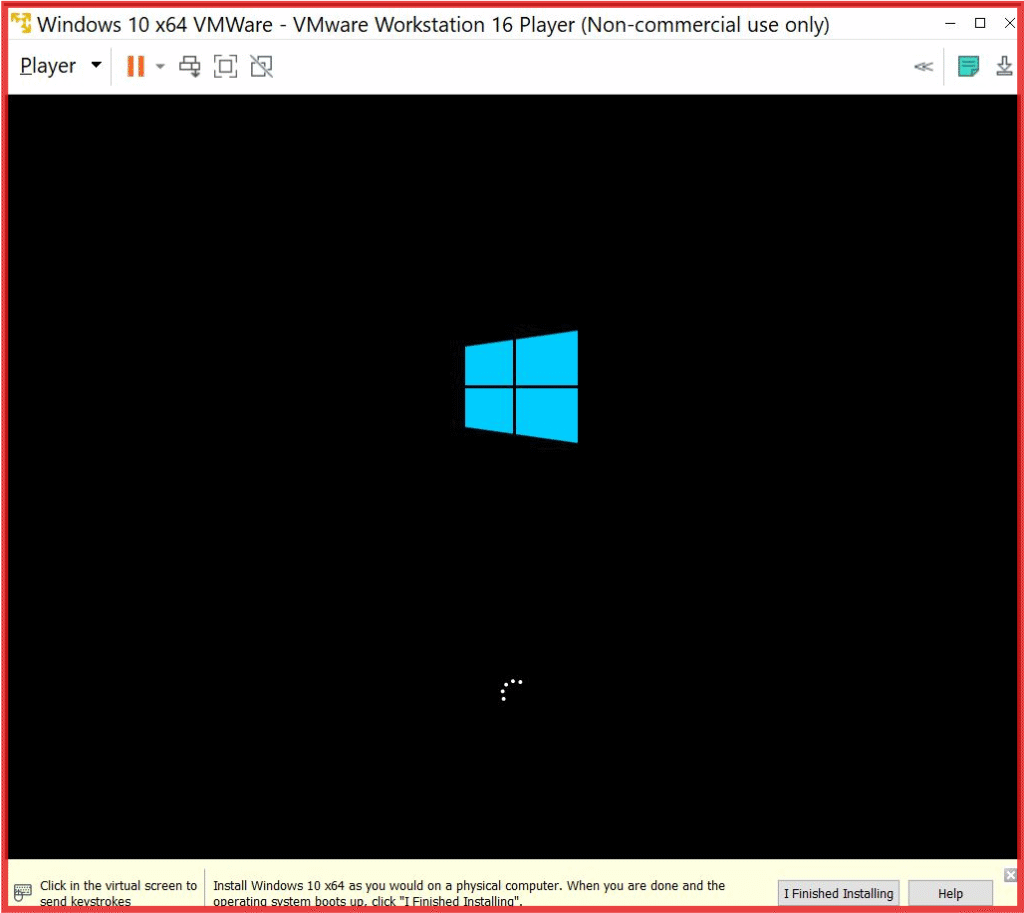
13. Windows 10 logo appears
14. Click next and process as a normal Windows installation
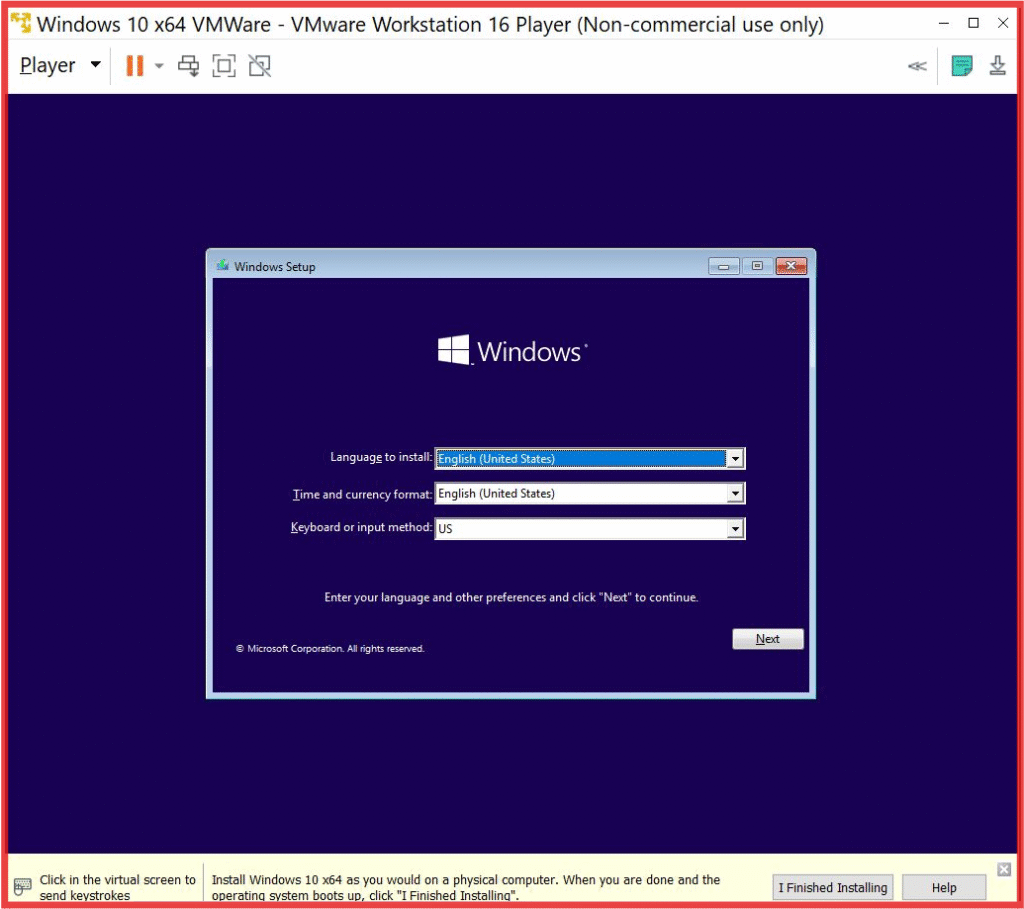
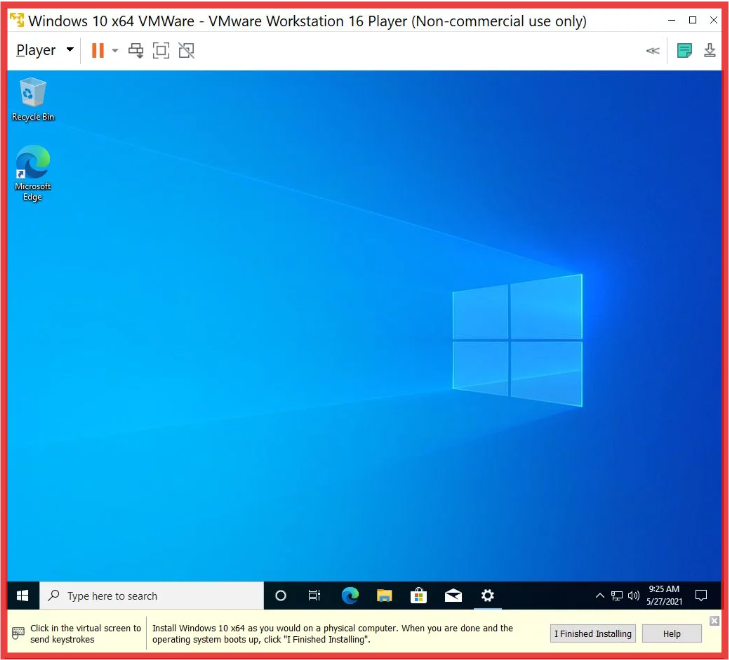
15. That’s it. You have successfully installed Windows 10 on your VMware.
If you want to know how to install VMware on computer, please click this link
Do you want to understand VMware? Please visit this link
Thank you